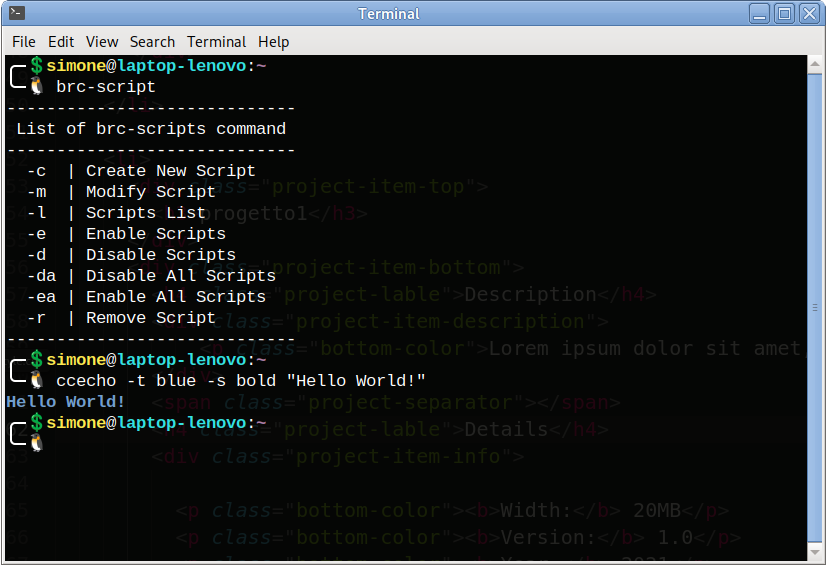
Project Overview
Modular Bashrc Manager is a modern, modular, and blazing-fast system designed to organize, manage, and scale your Bash configuration on Linux and macOS. Inspired by the proven available / enabled architecture used by Debian, Apache, and Nginx, it replaces the traditional, chaotic, and monolithic ~/.bashrc file with a clean and decoupled library of self-contained modules.
Instead of cramming hundreds of lines of aliases, functions, environment variables, and prompt customizations into a single brittle file, your configuration is broken down into independent scripts. Using the central brc-script command-line utility, you can enable, disable, preview, cat, create, remove, or safely upgrade individual modules in seconds.
~/.bashrc and seamlessly migrates all your pre-existing customizations into the protected 00_default.sh module. You lose zero configuration!Key Features
- Decoupled Modular Architecture: Isolates aliases, functions, prompts, and exports into dedicated scripts, sourcing only actively enabled modules upon shell initialization.
- Multi-Script Batch Control: Enable (
-e), disable (-d), preview (-p), cat (-v), or remove (-r) multiple scripts at once using numerical IDs or file names (e.g.brc-script -e 1 3 4orbrc-script -d 03_bashboard 04_aliases). - Global Enable/Disable Toggles: Instantly enable all available modules (
-ea/--enable-all/enable-all) or disable all active modules (-da/--disable-all/disable-all) in a single command. - Dual Code Inspection Modes (Preview vs Cat):
- Preview (
-p/--preview): Displays formatted source code with line numbering, file path, line count, and active status (ENABLED/DISABLED). - Cat / View (
-v/--cat/--view): Prints clean, unnumbered script code directly to standard output, ideal for fast copy-pasting or redirection.
- Preview (
- Gitea Updates & Safe Upgrade Engine: Check for official upstream commits (
-u/--update) with passive menu notices and perform automated upgrades (--upgrade) of core system files without touching your custom code or00_default.sh. - Intelligent System Bashboard with Cockpit Discovery: Includes
03_bashboard.sh, an MOTD-style login dashboard monitoring CPU, RAM, disk, temperature, public/local IPs (with timing cache), pending updates, and dynamic auto-discovery of Cockpit Web UI with listening port resolution. - Interactive Git CLI Highlighting: Built-in prompt hooks displaying active Git branch, staged files (
+), modified files (M:), untracked files (N:), and remote sync status (↑/↓). - Cross-Distro Smart Installer: Automatically detects the host package manager (
apt,dnf,yum,pacman,zypper,apk,brew) and installs required dependencies (jq,curl). - Integrated
ccechoStyling Engine: Built-in utility for printing ANSI styled text, custom backgrounds, and terminal formatting (bold, underline, dim, blink). - Instant Shell Reloading: Dedicated
refresh-brccommand immediately applies configuration changes in the active session without closing the terminal.
Directory Structure
Following installation, the environment is organized within the root ~/.bashrc.d/ directory:
  📁 ~/.bashrc.d/
  ├── 📄 .version                               # Current commit / version tracking hash
  ├── 📄 .update_cache                          # Local cache for passive update notifications
  ├── 📂 scripts-needed/                        # Essential engine scripts (Always sourced first)
  │    ├── 📄 brc-script.sh                     # Main CLI manager logic & functions
  │    └── 📄 ccecho.sh                         # Colored terminal formatting helper
  ├── 📂 scripts-available/                     # Library of all installed modules
  │    ├── 📄 00_default.sh                     # Migrated user configuration (Protected from upgrade)
  │    ├── 📄 01_git-cli-highlitgh.sh           # Dynamic Git status prompt (User)
  │    ├── 📄 02_git-cli-highlitgh-root.sh      # Color-coded Git prompt for Root
  │    ├── 📄 03_bashboard.sh                   # System metrics & Cockpit auto-discovery
  │    └── 📄 04_aliases.sh                     # General utility aliases
  ├── 📂 scripts-enabled/                       # Symbolic links pointing to active modules
  │    ├── 🔗 00_default.sh -> ../scripts-available/00_default.sh
  │    └── 🔗 03_bashboard.sh -> ../scripts-available/03_bashboard.sh
  └── 📂 scripts-removed/                       # Safe recycle bin with timestamped backups of removed scripts
Loading Order at Shell Startup:
- All essential engine scripts in scripts-needed/*.sh are sourced sequentially.
- All active symbolic links in scripts-enabled/*.sh are sourced in alphabetical order.
Installation & Quick Start
Automated Installation (Recommended)
1. Clone the repository from Gitea:
git clone https://gitea.sld-server.org/sld-admin/Modular-Bashrc-Manager.git
cd Modular-Bashrc-Manager/installer
2. Make the installer executable and run it:
chmod +x brc-script-install.sh
./brc-script-install.sh
3. Reload your active shell:
refresh-brc
# or: source ~/.bashrc
root. When run with root privileges, an interactive selection menu allows provisioning any user account on the system.What the Installer Does:
- Automatically checks for and installs
jqandcurlusing the native system package manager. - Creates a timestamped safety backup of your original
~/.bashrc(e.g.,~/bashrc-backup-2026-08-26_16-00-00). - Extracts all existing customizations into scripts-available/00_default.sh and enables it immediately.
- Replaces
~/.bashrcwith the clean, non-intrusive modular loader loop. - Deploys core scripts to scripts-needed/ and standard modules to scripts-available/.
- Initializes
.versionwith the current Git commit identifier.
CLI Command Reference (brc-script)
The brc-script command provides full administration over your modular configuration:
| Action | Flags / Aliases | Arguments | Description |
|---|---|---|---|
| List | -l, --list, list |
none | Lists all modules with numerical IDs, filenames, and active status (- in blue) |
| Preview (Numbered) | -p, --preview, preview |
<id|name ...> |
Prints module code with line numbers, file path, line count, and active status headers |
| Cat / View (Plain) | -v, --cat, --view, --show, cat, view |
<id|name ...> |
Prints clean, unnumbered script code directly to terminal (easy copy & paste) |
| Enable | -e, --enable, enable |
<id|name ...> |
Activates one or more scripts by creating symlinks in scripts-enabled/ |
| Disable | -d, --disable, disable |
<id|name ...> |
Deactivates one or more scripts by removing symlinks from scripts-enabled/ |
| Enable All | -ea, --enable-all, enable-all |
none | Enables all available scripts in scripts-available/ at once |
| Disable All | -da, --disable-all, disable-all |
none | Disables all currently active scripts in scripts-enabled/ at once |
| Create | -c, --create, create |
none | Interactive wizard to generate a new module from template and open it in $EDITOR |
| Modify | -m, --modify, modify |
<id|name> |
Opens a module in $EDITOR (or vim) with optional renaming |
| Remove | -r, --remove, remove |
<id|name ...> |
Safely moves script(s) to scripts-removed/ with timestamped backup |
| Update | -u, --update, update |
none | Queries Gitea repository for new upstream commits and releases |
| Upgrade | --upgrade, upgrade |
none | Safely upgrades core scripts and default modules without altering your custom code |
| Reload | refresh-brc |
none | Immediately reloads ~/.bashrc in the current terminal session |
Practical Usage Examples
1. Listing all available scripts:
brc-script -l
2. Previewing script source code with line numbers:
# Preview by numerical ID
brc-script -p 4

# Preview by script name
brc-script --preview 03_bashboard
3. Printing plain script code (cat without line numbers):
# Cat by numerical ID
brc-script -v 4

# Cat by script name
brc-script --cat 03_bashboard
4. Enabling multiple scripts simultaneously:
# Multiple IDs
brc-script -e 1 3 4

# Multiple script names
brc-script -e 01_git-cli-highlitgh 04_aliases
5. Disabling multiple scripts in one command:
brc-script -d 2 4 5
brc-script -d 03_bashboard 04_aliases
6. Creating a new custom script:
brc-script -c
7. Checking and upgrading from Gitea:
# Check for updates
brc-script -u

# Upgrade core engine & default modules
brc-script --upgrade
Included Default Modules
00_default.sh— Migrated Personal Configuration:
Contains all pre-existing aliases, functions, environment variables, andPATHexports migrated from your original~/.bashrc. Strictly protected: automated upgrades will never alter or overwrite this file.01_git-cli-highlitgh.sh— Interactive Git Status Prompt (User):
Displays current Git branch (Green if clean, Purple if dirty), staged files (+Nin green), modified files (M:Nin yellow), untracked files (N:Nin red), and remote synchronization status (↑Nahead /↓Nbehind).02_git-cli-highlitgh-root.sh— Git Prompt with Root Highlighting:
High-visibility prompt variant tailored for server environments and root sessions, featuring bright red styling forroot(#symbol) and green/blue for standard users (>symbol).03_bashboard.sh— System Bashboard & Cockpit Discovery:
Generates a clean graphical overview upon terminal login:- Operating system distro, kernel version, and Hostname.
- Local network IP and public IP (with cached lookup to maintain sub-millisecond shell startup).
- Dynamic Cockpit Web UI Detection: Detects if Cockpit is installed, resolves its active listening port (from configuration, systemd sockets, or active connections), and displays the direct URL
https://<PRIMARY_IP>:<PORT>. - CPU, RAM, and Disk utilization percentages with color-coded alerts (Green < 50%, Yellow < 80%, Red ≥ 80%).
- System Uptime and Load Average.
- Pending package updates counter across distributions (
apt,dnf,pacman/checkupdates,zypper,apk). - CPU Temperature sensor monitoring (automatically disabled on virtual machines).
04_aliases.sh— Common Productive Aliases:
Provides colorized directory listings and essential shortcuts for daily command-line productivity.
Creating Custom Modules
Adding a new modular script is straightforward:
- Launch the creation wizard:
brc-script -c
- Enter your desired script name (e.g.
docker-utility). - Add your custom functions, aliases, or variables in the editor:
#!/bin/bash # ============================================================ # Modular Bashrc - docker-utility.sh # ============================================================ alias dps="docker ps --format 'table {{.Names}}\t{{.Status}}\t{{.Ports}}'" alias dlogs="docker logs -f --tail=100" dclean() { ccecho -t byellow "Cleaning unused Docker containers and images..." docker system prune -af --volumes ccecho -t bgreen "Docker cleaned successfully!" } - Save and exit the editor. Confirm immediate activation when prompted.
- Reload the shell using
refresh-brc.
Extra Utilities: ccecho
Included inside scripts-needed/ is ccecho (Colored Custom Echo), a fast formatting engine for colored terminal printing:
Usage Examples:
# Green bold message
ccecho -t green -s bold "Operation completed successfully!"

# Red text on black background with underline
ccecho -t red -b black -s underline "Critical Error: Connection refused"

# Bright cyan notification
ccecho -t bcyan "Downloading package..."
Available Options:
- Text Colors (
-t/--text):black,red,green,yellow,blue,magenta,cyan,white, and bright variants (bblack,bred,bgreen,byellow,bblue,bmagenta,bcyan,bwhite). - Background Colors (
-b/--bg): same palette as text colors. - Formatting Styles (
-s/--style):bold,dim,italic,underline,blink,reverse,hidden,strike.
Supported Distributions
Modular Bashrc Manager is fully compatible with any POSIX / Bash (≥ 4.0) environment and has been verified on:
| OS Family | Distributions & Operating Systems | Detected Package Manager |
|---|---|---|
| Debian / Ubuntu | Debian, Ubuntu, Linux Mint, Pop!_OS, Raspberry Pi OS | apt / apt-get |
| Red Hat / Fedora | Fedora, RHEL, CentOS Stream, Rocky Linux, AlmaLinux | dnf / yum |
| Arch Linux | Arch Linux, Manjaro, EndeavourOS | pacman |
| openSUSE | openSUSE Leap, openSUSE Tumbleweed | zypper |
| Alpine Linux | Alpine Linux (Containers & Servers) | apk |
| macOS | Apple macOS (Intel & Apple Silicon) | brew (Homebrew) |
Troubleshooting & FAQ
1. I enabled a script, but new commands are not working yet.
Run the instant reload command in your terminal:
refresh-brc
2. How can I restore my original .bashrc?
The installer creates a timestamped safety backup before modifying any files. To restore:
cp ~/bashrc-backup-* ~/.bashrc
3. Where are removed scripts stored?
Scripts removed via brc-script -r are safely preserved with timestamp tags inside ~/.bashrc.d/scripts-removed/.
4. How do I change the default text editor?
Set the standard EDITOR environment variable inside your 00_default.sh module:
export EDITOR="nano" # or "vim", "code", "nvim", "micro"
License & Repository
This project is free software licensed under the GNU General Public License v3.0 (GPL-3.0).
Official Repository on Gitea: sld-admin/Modular-Bashrc-Manager